
Provider accounts and usage
A provider account is the connection Glixo uses to send model requests. Your Glixo sign-in and provider accounts are separate. Each provider account may use its own sign-in method and billing.
Add or change an account
- Open Settings → Providers & models.
- Select Add account and choose a provider.
- Choose a connection method offered for that provider. It may use an API key, a browser sign-in or a CLIProxy sign-in.
- Enter the API key or finish the browser sign-in, then save the account. Review any connection or usage warning before choosing Save anyway or Go back.
- Select the saved account and an available model in the session composer. Send a small request to check that it works.
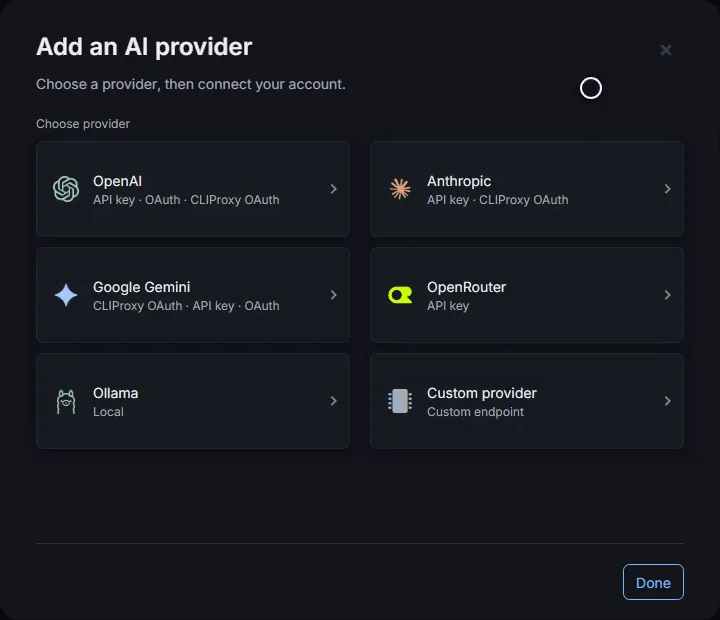
For example, connection choices can include OpenAI API key, ChatGPT sign-in or Codex sign-in via CLIProxy; Anthropic API key or Claude sign-in via CLIProxy; and Gemini API key, Google sign-in or Google Antigravity via CLIProxy. The choices shown depend on the provider support in your build and machine.
Connection and usage warnings
Newer builds check the provider connection and usage reporting separately:
- An orange connection warning means the API key or connection could not be verified. Requests may fail until you correct the key, sign-in, endpoint or access permissions.
- A yellow usage warning means Glixo could not retrieve the quota or billing information. This does not prevent a working account from sending requests.
- Save anyway keeps the account despite these warnings. It does not make an invalid key work or approve a restricted endpoint. Go back returns to setup so you can correct the details.
Both warnings can appear together. A saved account is not necessarily a verified connection. If you see Could not check endpoint approval, ordinary API-key setup remains available; any endpoint permissions required by an extension still apply when you connect.
Connect to an existing CLIProxy server
Choose OpenAI, Claude or Gemini, then Connect to existing CLIProxy. Enter the CLIProxy URL and the server's API key if it requires one. The URL can be a service root, such as http://localhost:8317, or its /v1 endpoint.
The key in this form belongs to CLIProxy, not directly to OpenAI, Anthropic or Google. Sign in to the upstream provider in CLIProxy first. Glixo uses that server's models and requests; it does not start the server or import its provider sign-ins.
Use a URL reachable from the machine running the session. localhost means that machine; on Android Run here, it means the phone. A small green dot beside CLIProxy means Glixo detected a local CLIProxy server on that machine. It does not confirm that a provider is signed in or has quota. No dot means the server was not detected; you can still enter a reachable server URL.
The separate sign-in via CLIProxy methods let Glixo prepare and manage the local proxy for that connection and open the provider's sign-in page. These managed connections can report the selected upstream account's usage. Connecting to an existing server with only its inference key cannot currently report precise upstream quotas or balances; its billing label is Billing unknown.
Choose which account a session uses
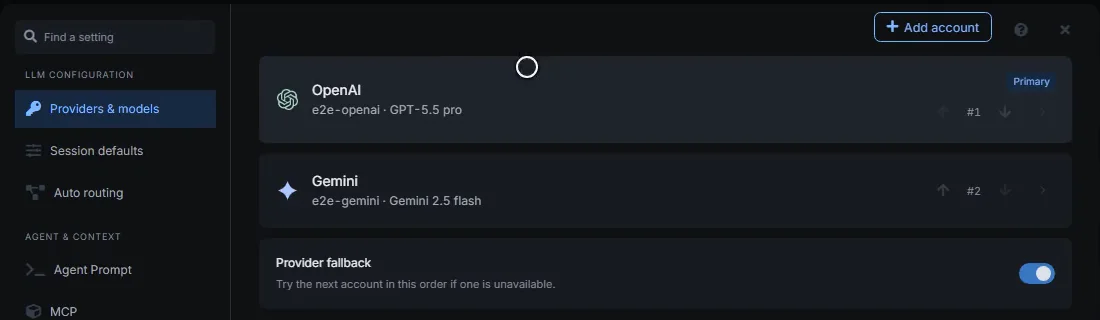
You can add more than one account for a provider. The provider account selected for a request determines which provider connection handles it.
If Provider fallback is available and enabled, Glixo tries the next account in the list when one is unavailable. Reorder accounts to change which one Glixo tries first.
To check a particular connection, select that account and model, turn Provider fallback Off, and send a small request. This prevents a successful fallback from hiding a problem with the account you meant to test.
Read the usage summary
On newer builds that include provider usage reporting, the Provider accounts area in the sidebar shows a short status for each connection. Select an account to open its details. If the usage summary is not available in your build, open the provider’s own billing page.
- Percentages show the amount remaining, rounded to whole percentages in the sidebar. For example,
73% 2h 3m | 32% 4d 16hshows two independent limits and their reported reset countdowns. - A full, unused window without a reported reset can show its duration, such as
100% 5h. The5his the window length, not a confirmed countdown. Due means the reported reset time has passed; refresh the account to see its new allowance. - Accounts can have more limits or model groups than fit in one sidebar line. Open the account details, or hover the row on desktop, to see them and the precise values.
- Plan quota identifies a subscription connection. Credits identifies a reported balance. Pay as you go identifies API billing; it does not guarantee a prepaid wallet or a retrievable balance.
- A reported balance can appear as
41,116 credits. The sidebar rounds this to a whole number; account details retain the reported precision and currency when present. - A number without
%is a count or amount reported by the provider. Read its label (for example, requests or tokens); do not assume it is a prepaid credit balance unless the provider labels it as credits. - A status such as Usage not reported means Glixo did not receive usage details for that connection. It does not mean the balance is zero.
- Unavailable means the status request failed. Open the account for details and retry after checking the connection.
- Saved or Stale snapshot means the displayed values came from an earlier successful check. Open the account and select Refresh; the old values do not confirm the current allowance.
Usage details depend on the provider, connection method and Glixo build. Some providers show limits or balances; others do not. An API key sends requests through the provider’s API billing. Billing can use prepaid balance, pay-as-you-go or an eligible free allowance; an API key does not by itself mean the account has prepaid credits.
OpenAI API billing is separate from a ChatGPT or Codex plan. The plan and its credits do not pay for ordinary OpenAI API-key requests. See OpenAI's billing explanation. For other providers, check the billing page for the account and connection method you selected.
Which connections report usage?
On builds with account-status support, Glixo can show the following when the provider returns it:
| Connection | What Glixo can report |
|---|---|
| OpenAI ChatGPT/Codex connection, directly or through Glixo-managed CLIProxy | Plan, separate quota windows and reset times, plus credits when returned. |
| Claude sign-in through Glixo-managed CLIProxy | Plan, quota windows and reset times, with any extra paid usage shown separately in details. |
| Google Antigravity through Glixo-managed CLIProxy | Tier and separate quota groups for its models, with reset times. |
| OpenAI API key | Current UTC calendar-month organization spend with a separate Admin API key that can read costs. This is not a remaining credit balance. |
| Anthropic API key | Organization usage, cost reports and configured rate limits when the key has reporting access. These are not a prepaid balance or a live remaining-quota percentage. |
| Gemini API key or direct Google sign-in | Account quota and balance reporting are not supported by these Glixo connections. Check Google AI Studio or Cloud billing. |
| Existing CLIProxy server | Upstream quota and balance reporting are not supported with its inference key alone. |
OpenAI and Anthropic account forms offer Admin API key for organization usage (optional). It is for reporting; keep the ordinary API key in its separate field for model requests. Anthropic also accepts eligible personal or service-account keys that are not scoped to a workspace; individual Console accounts cannot use the organization reporting API. See Anthropic's reporting requirements.
Subscription reporting uses private provider interfaces, which may change or become unavailable. A working model connection can therefore have missing usage. Organization reports may also lag behind recent requests; spend is not a live wallet balance.
If a request runs out of quota or funds
Open the account shown for the session and check its provider, connection method and reported status. If a quota has a reset time, wait for it or select another available account/model. If the provider reports a balance or billing error, add funds or update billing with that provider. If usage is not reported, check the provider directly; do not treat a missing number as proof that the account is empty.