
Permissions
The permission mode controls whether Glixo asks before taking actions such as editing files or running commands. It appears in the session composer. Check it before sending a task, especially when you are working in an unfamiliar project.
Choose a mode
Open the permission selector in the composer and choose from the modes available for the selected provider and session. For Glixo Code sessions, the choices include:
- Ask: ask before each file edit or shell command.
- Plan: read code and prepare a plan; nothing runs until you say to go.
- Accept edits: accept file edits automatically, but ask before running shell commands.
- Read-only: inspect without writing files or running commands.
- Bypass all: run anything without asking. Use only in throwaway repositories.
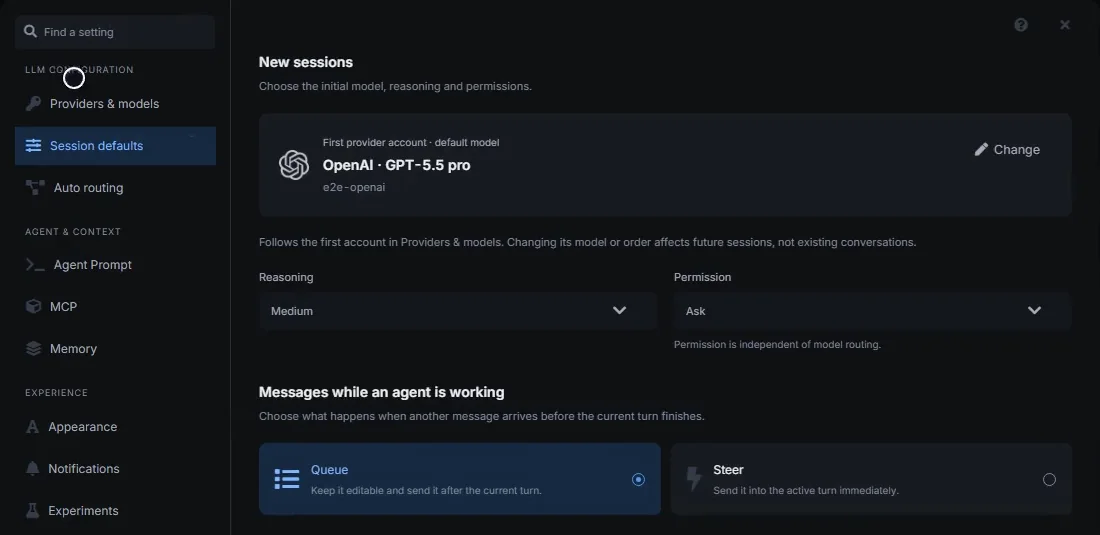
The available modes vary by provider and session, so the composer may show only some of these choices. The label on the selected mode describes the current setting. To set a starting mode for new sessions, open Settings → Session defaults. The composer selector changes the current session.
Review an approval request
Read what Glixo wants to do and the file or command it will use. Approve it only if it matches your task. If it does not, deny the request and tell Glixo what should happen instead.
You can change the permission mode from the composer while a session is open. A more permissive mode can let commands change or remove files, access project data or use network connections. Return to Ask or Read-only when you want Glixo to pause before making changes.